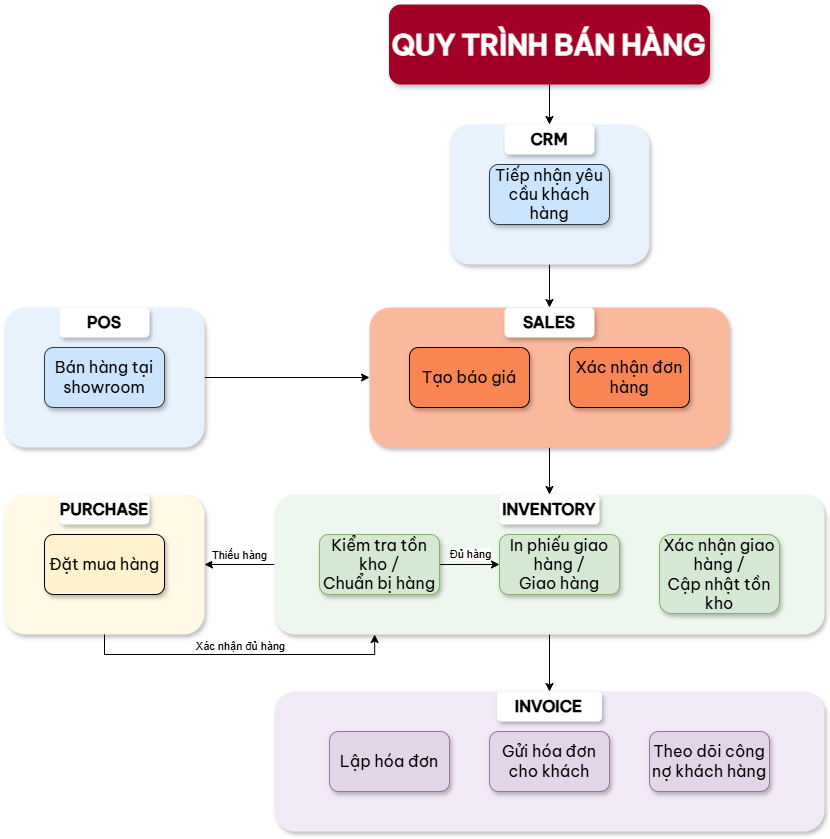
1. Odoo Sales Implementation Plan
For retail operations
TABLE OF CONTENTS
1. 🔎 OVERVIEW
Necessary modules and implementation processes to effectively serve retail operations for construction materials.
2. 📦 MODULES TO DEPLOY
2.1. Main Module
Sales (sale_management) – Manage quotations, orders, and sales contracts.
2.2. Dependent Modules
2.2.1. Inventory and Product Management
- Inventory (stock) – Manage inventory, receipts – deliveries – stock levels.
- Purchase (purchase) – Manage purchase orders.
- Barcode – Support barcode scanning for warehouse and sales.
2.2.2. Sales & Customer
- CRM (crm) – Manage opportunities and customer care.
- Contacts (contacts) – Manage customer and vendor information.
- Point of Sale (POS) – In-store sales.
2.2.3. Finance & Payment
- Invoicing (account) – Create invoices, track debt, accounting integration.
2.2.4. Internal Management
- Employees (hr) – Human resources management.
- Documents (documents) – Internal document management.
- Planning (planning) – Work planning.
2.2.5. Supplementary (Optional)
- Fleet (fleet) – Fleet management (if transportation is provided).
- Website – Online sales.
- Loyalty Program – Customer loyalty programs (if applicable).
3. 🛒 SALES BUSINESS PROCESS
3.1. ✅ Receive Customer Requests
- Via store, phone, email, or website.
- Record requirements regarding products, quantity, and delivery time.
- In case of a new customer: create a Contact in the Contacts module.
3.2. 🧾 Create Quotation
- Go to module Sales > Quotations > Create.
- Select customer, quotation expiration date.
- Select product, quantity, price, taxes, discount (if any).
- Add notes on delivery conditions, payment (if needed).
- Send quotation via email (automatic or manual).
tip
📌 Option: Can print or export to PDF to send directly.
3.3. 📄 Confirm Sales Order
- When the customer agrees, click "Confirm Sale" to convert the quotation into an order.
- The system automatically:
- Deducts stock (if sufficient)
- Creates a Delivery Order in the Inventory module
- Creates an invoice (if configured)
3.4. 🚚 Preparation and Delivery
- Go to Inventory > Delivery Orders to process the delivery.
- Check stock, prepare goods.
- Print Delivery Slip.
- Confirm delivery (Validate).
- System updates inventory.
3.5. 💰 Invoicing
- Go to Sales Order > Create Invoice or via the Invoicing module.
- Select invoice type:
- Full invoice
- By delivered products
- By payment milestones
- Send electronic invoice or hard copy to the customer.
3.6. 💵 Debt Tracking & Payment
- Go to Invoicing > Customers > Payments.
- Record payment: cash, bank transfer, card swipe (depending on channel).
- Link payment to the corresponding invoice.
- Track debt status (Open / Paid).
3.7. 📊 Reporting and Analysis
- Access reports at:
- Sales > Reporting > Sales Analysis
- Invoicing > Reporting > Invoice Analysis
- Monitor:
- Revenue by time / product / employee
- Order status
- Conversion rate from quotation → order